Dashboard
Source-backed tour of the agent-qa dashboard routes for runs, tests, hooks, suites, memory, insights, config, and queue-aware workflows.
The dashboard is the local web UI for inspecting agent-qa runs, editing test assets, reviewing memory, and managing the workspace surfaces that back CLI execution.
Launch it with:
The dashboard command also supports --db <path> for the dashboard database and --open to open the browser after startup. The serve command starts the same dashboard-backed local services from configuration.
Navigation
The current dashboard sidebar exposes these labels: Runs, Tests, Hooks, Suites, Memory, Insights, and Config.
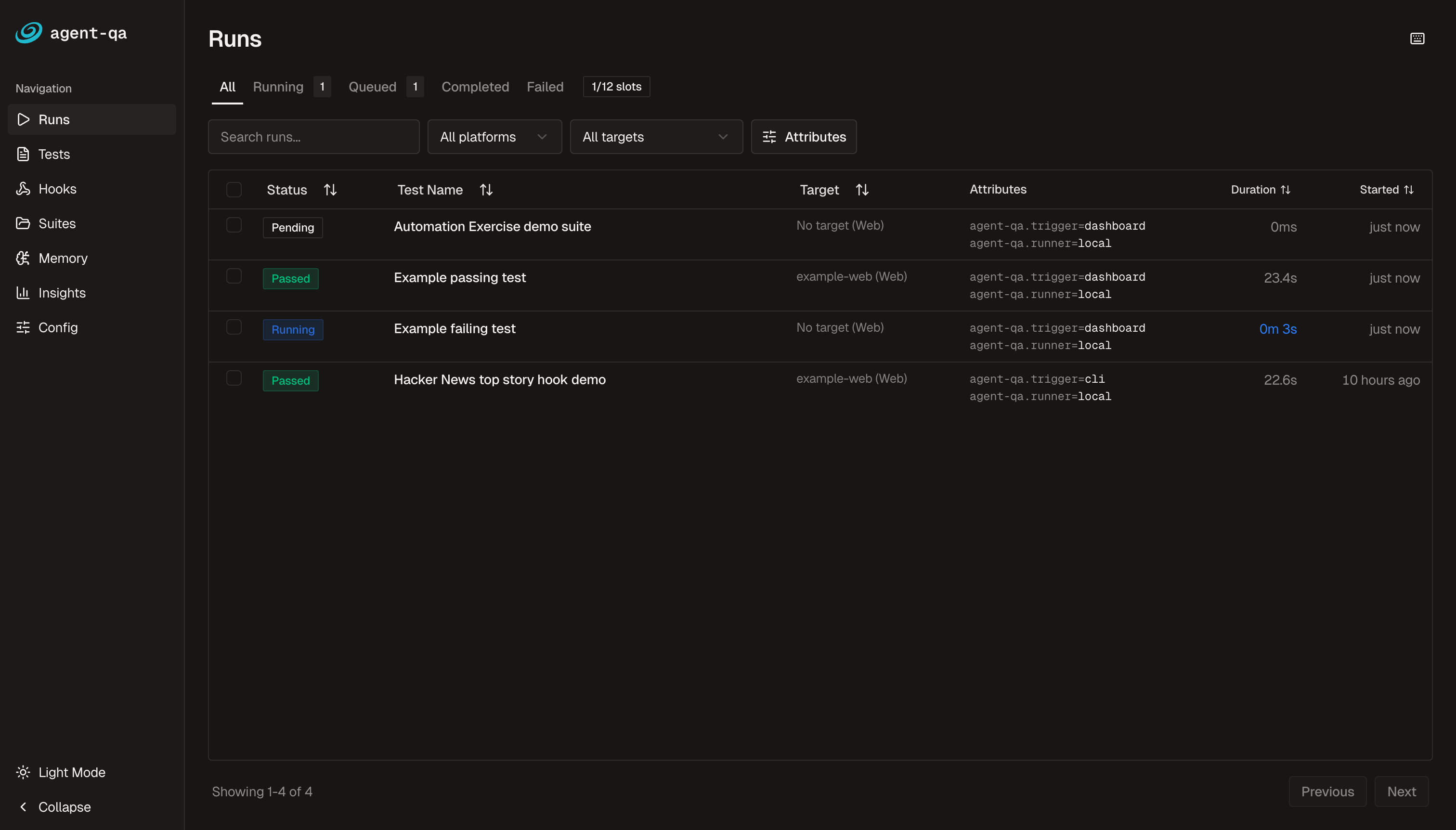
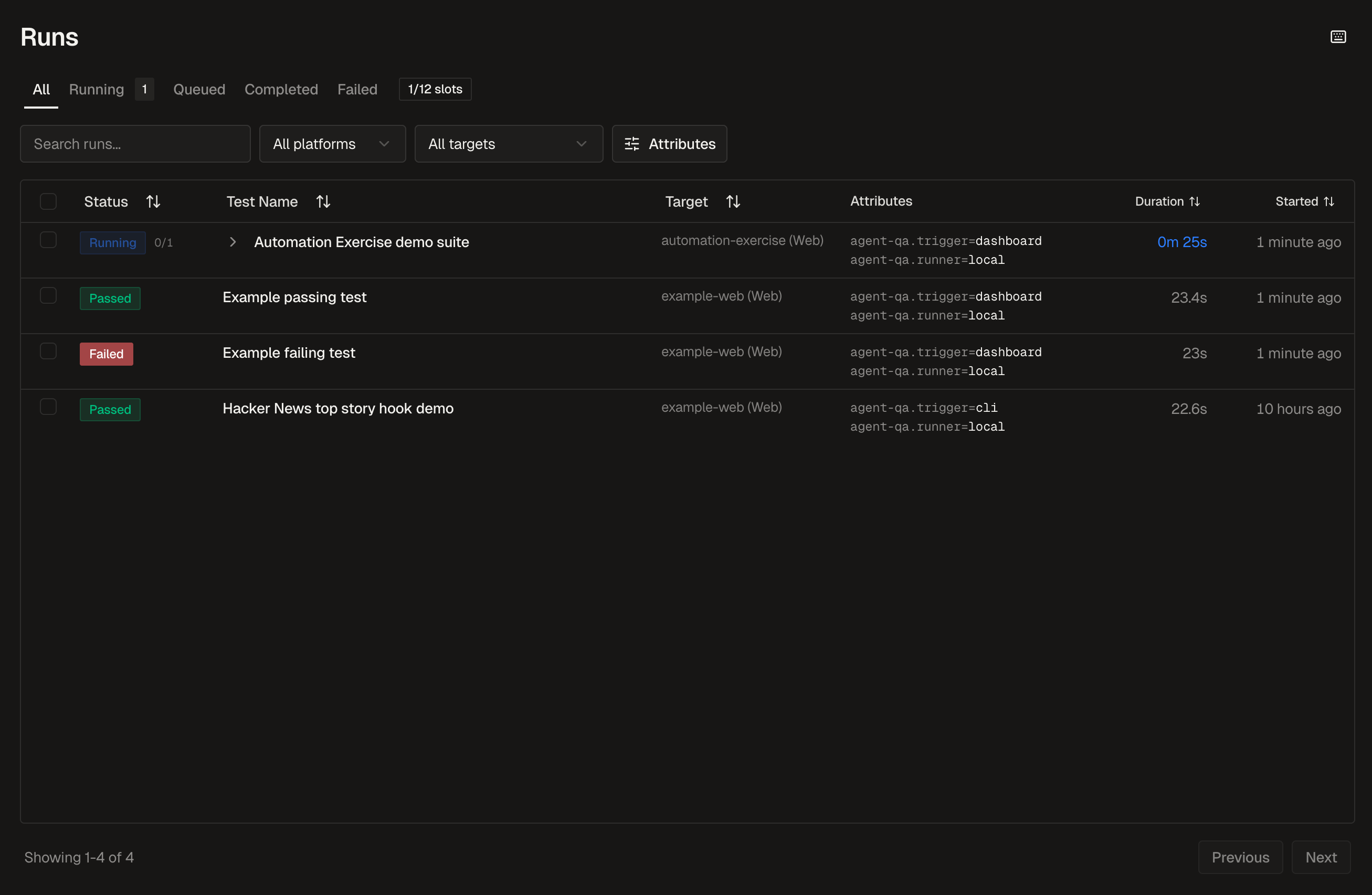
Runs
Runs open at /runs. A run detail page uses /runs/:id, and live in-progress execution uses /runs/:id/live. The route helper sends active runs to live view when the status should be watched in real time.
Use Runs when you need to inspect recent execution, jump into a specific run, or follow a live run while an agent is acting.
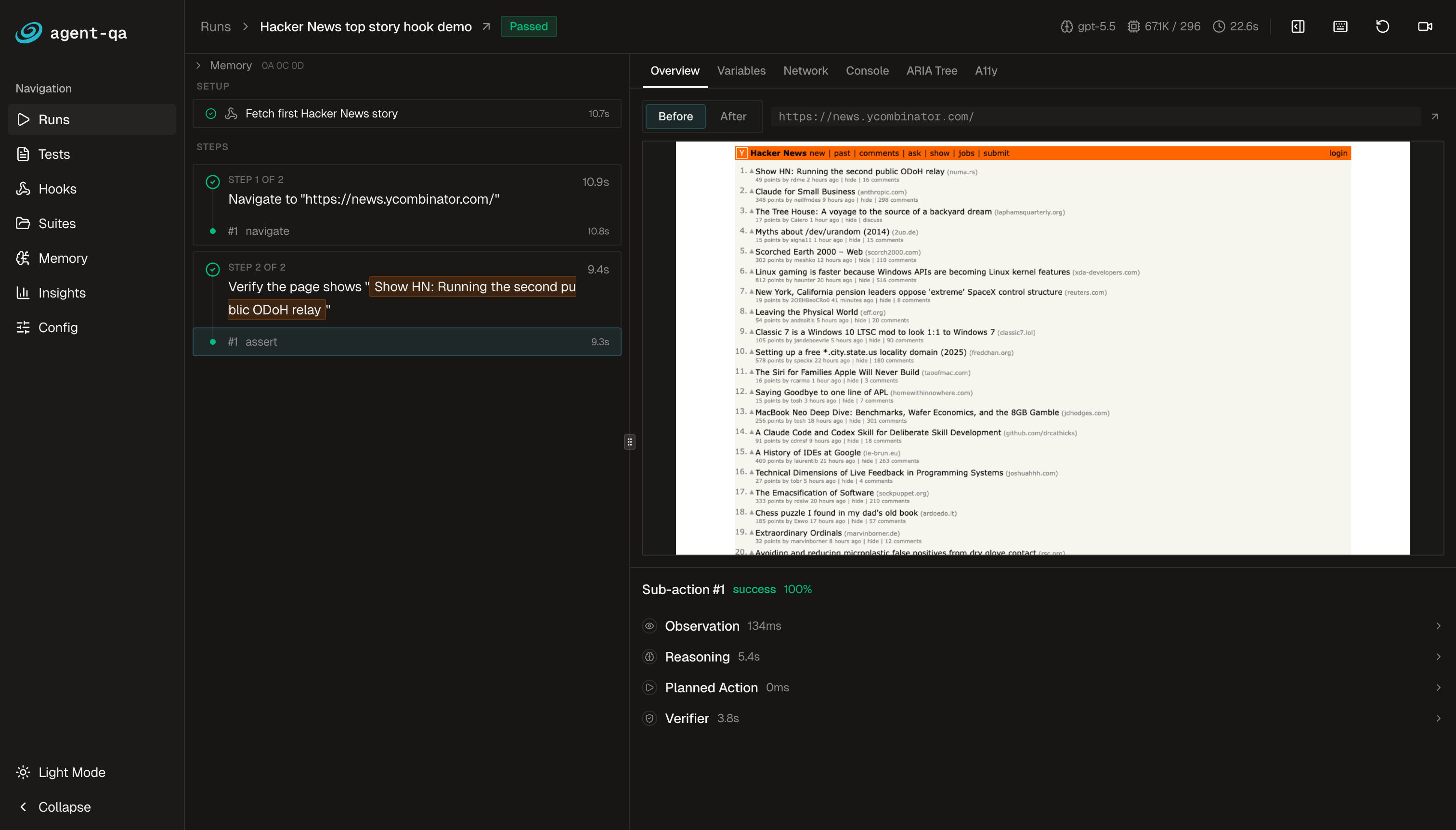
Run details keep the step timeline next to the captured browser state, tabs for Overview, Variables, Network, Console, ARIA Tree, and A11y, and per-action timing and model usage metadata.
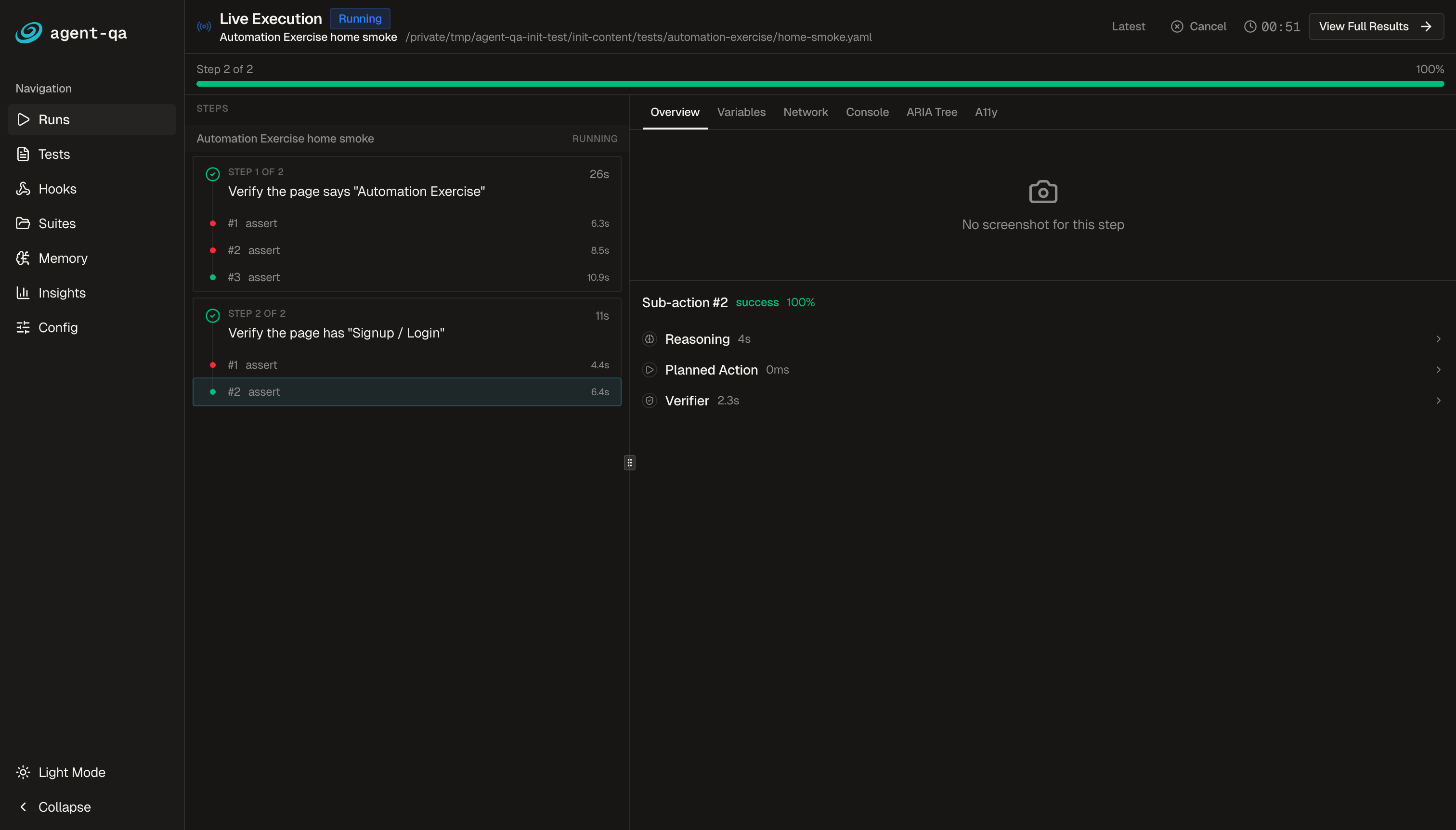
Live execution uses the same split-view model while the run is active. The progress bar, cancel control, elapsed timer, current step selection, and verifier/action feedback update as the agent works.
Tests
Tests open at /tests. New tests use /tests/new. Existing tests can be viewed at /test/:testId, edited at /test/:testId/edit, and opened in live editing mode with /test/:testId/edit?live=1.
Use Tests when you are authoring YAML journeys, reviewing generated test ids, or switching between view and edit modes for a test.
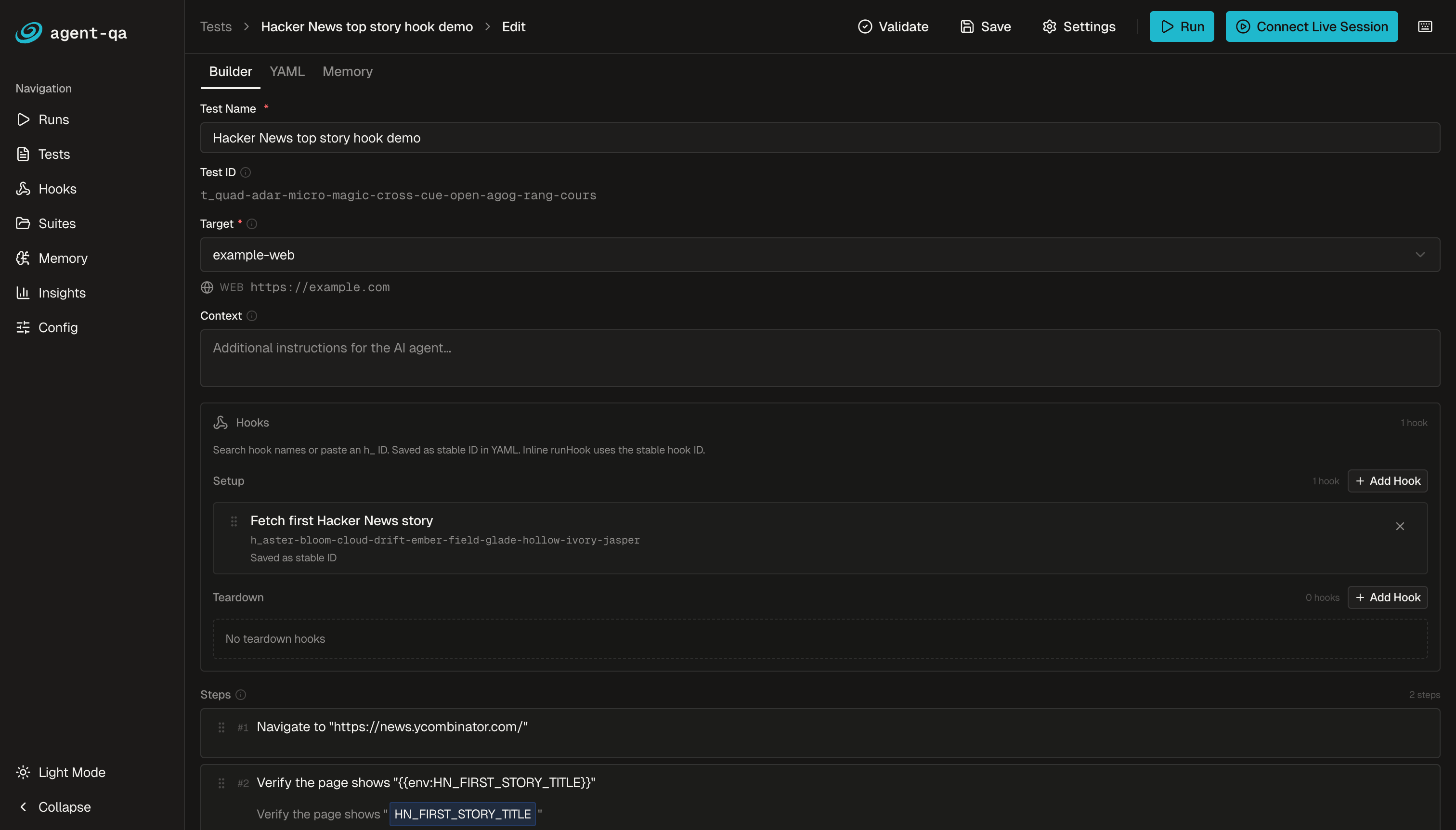
The test builder includes Builder, YAML, and Memory tabs. From the builder you can edit the test name, target, context, setup or teardown hooks, and ordered steps, then validate, save, run, or connect a live session.
Live Mode
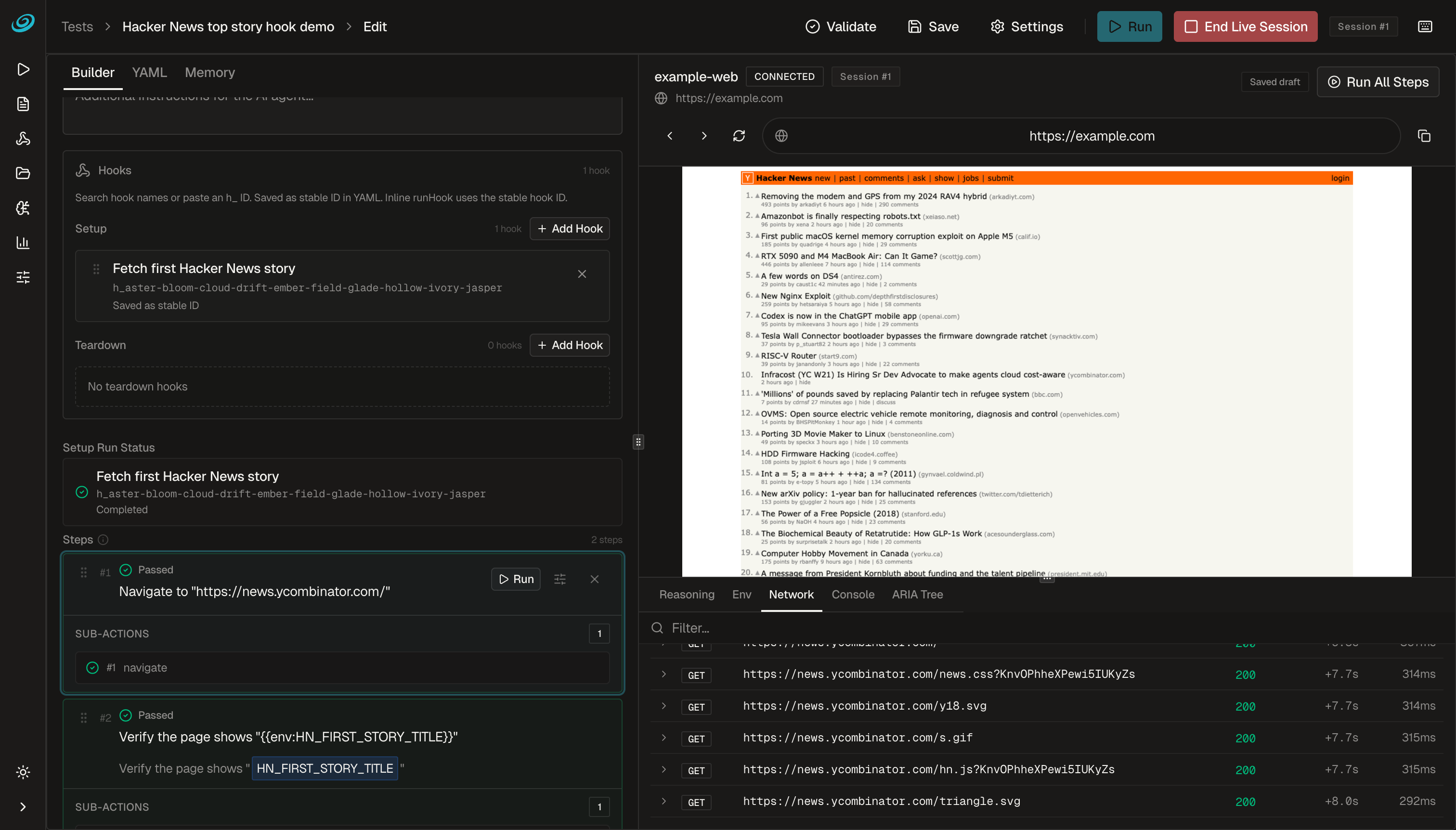
Live Mode connects the editor to a real browser session. The left side stays focused on test structure and step status, while the right side shows the browser surface plus inspection tabs such as Reasoning, Env, Network, Console, and ARIA Tree.
Hooks
Hooks open at /hooks. New hooks use /hooks/new. Existing hooks can be viewed at /hook/:hookId and edited at /hook/:hookId/edit.
Use Hooks to review setup and teardown automation that agent-qa can call before or after a run.
Hook references also appear inside test and suite builders. Setup and teardown hook cards show the stable hook id that is saved back to YAML, so a dashboard edit remains reviewable in source control.
Suites
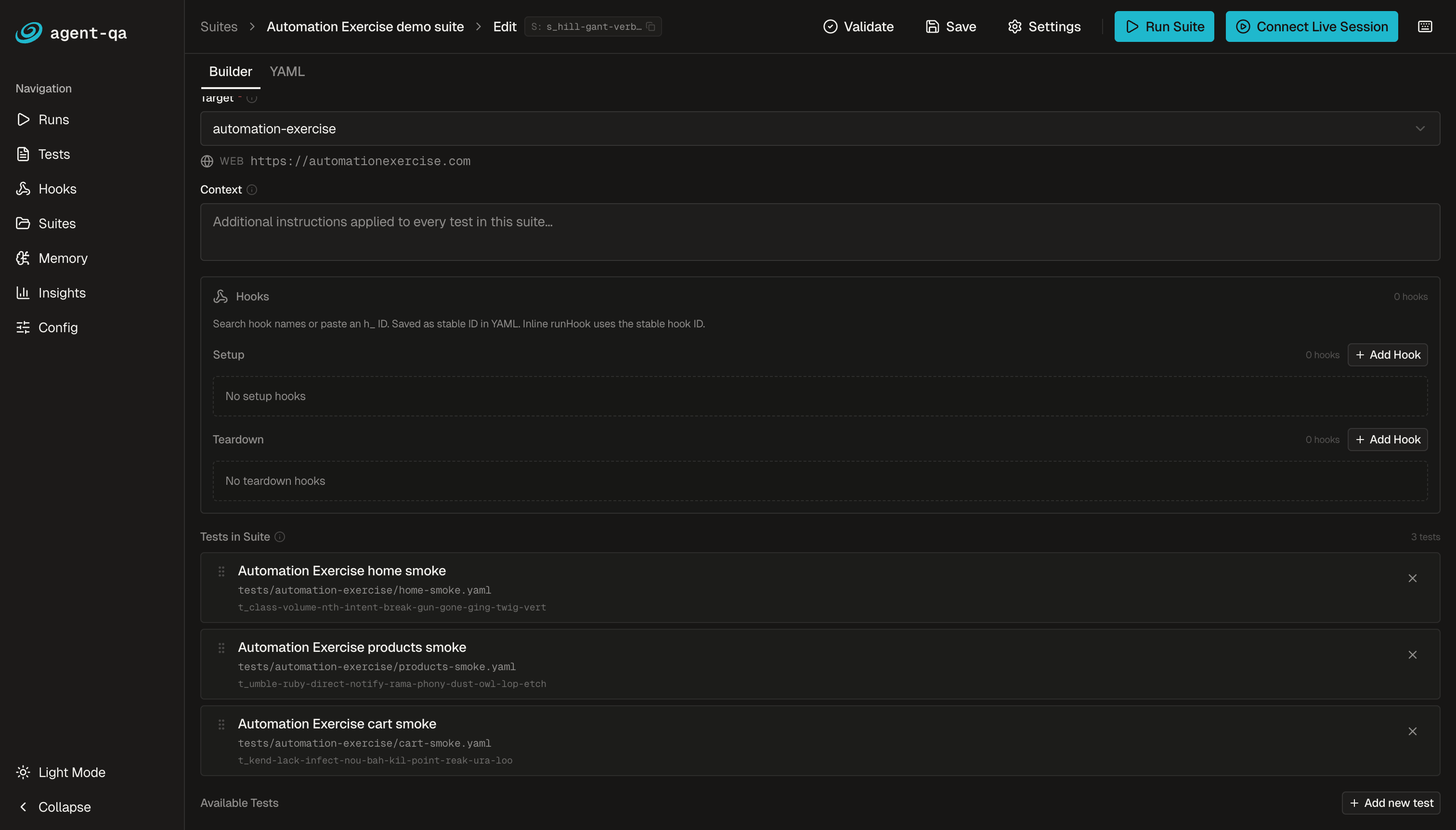
Suites open at /suites. New suites use /suites/new. Existing suites can be viewed at /suite/:suiteId and edited at /suite/:suiteId/edit.
Use Suites to collect related tests into repeatable workflows and review suite-level setup, teardown, targets, and test references.
Memory
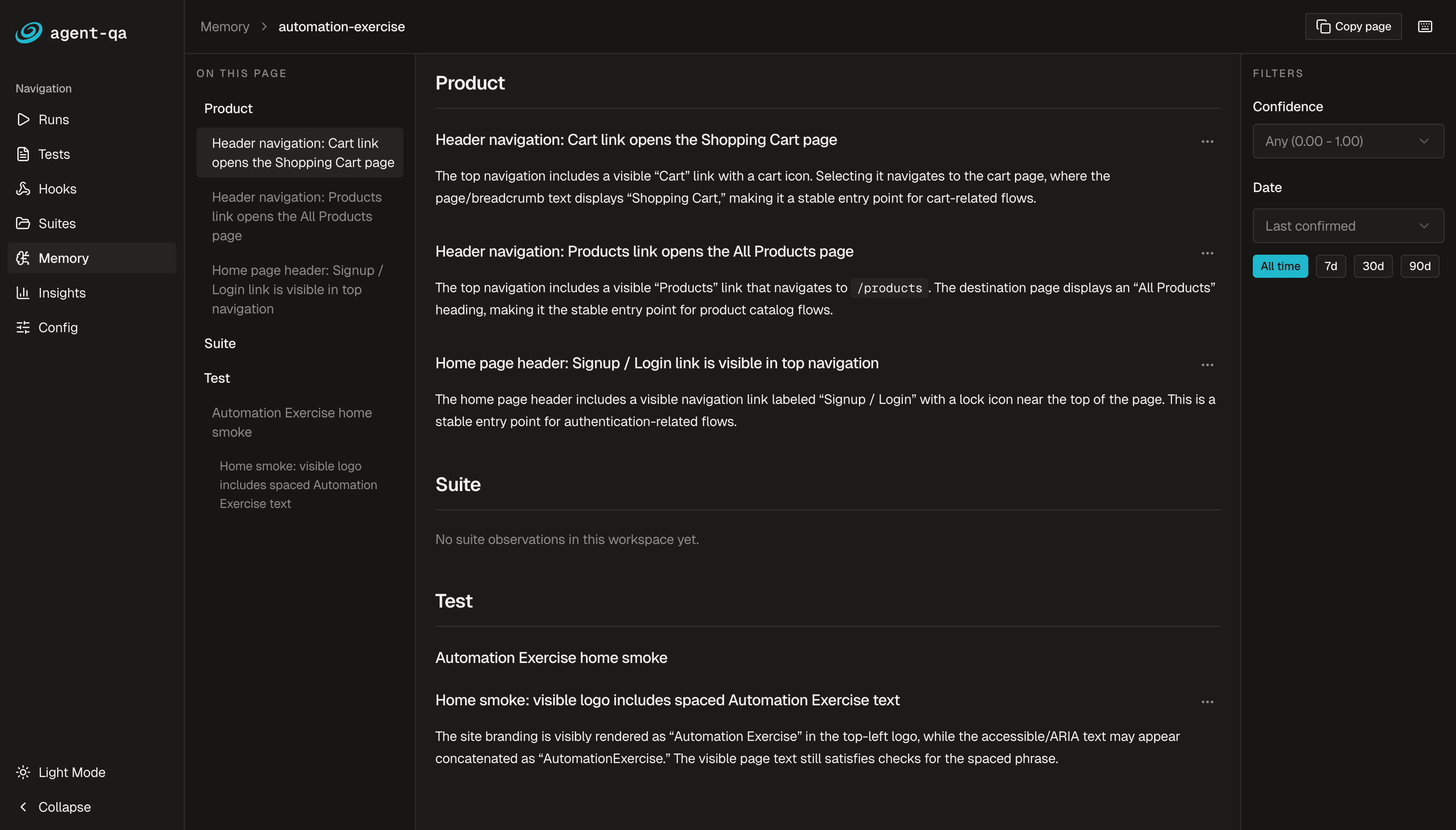
Memory opens at /memory. Product-specific memory opens at /memory/:product. Test-level memory observation panels show observations, invalid memory files, refresh, delete, and empty states such as "No observations yet."
Use Memory to inspect what the agent has learned about products, suites, and tests before trusting future runs that use runtime memory injection.
Insights
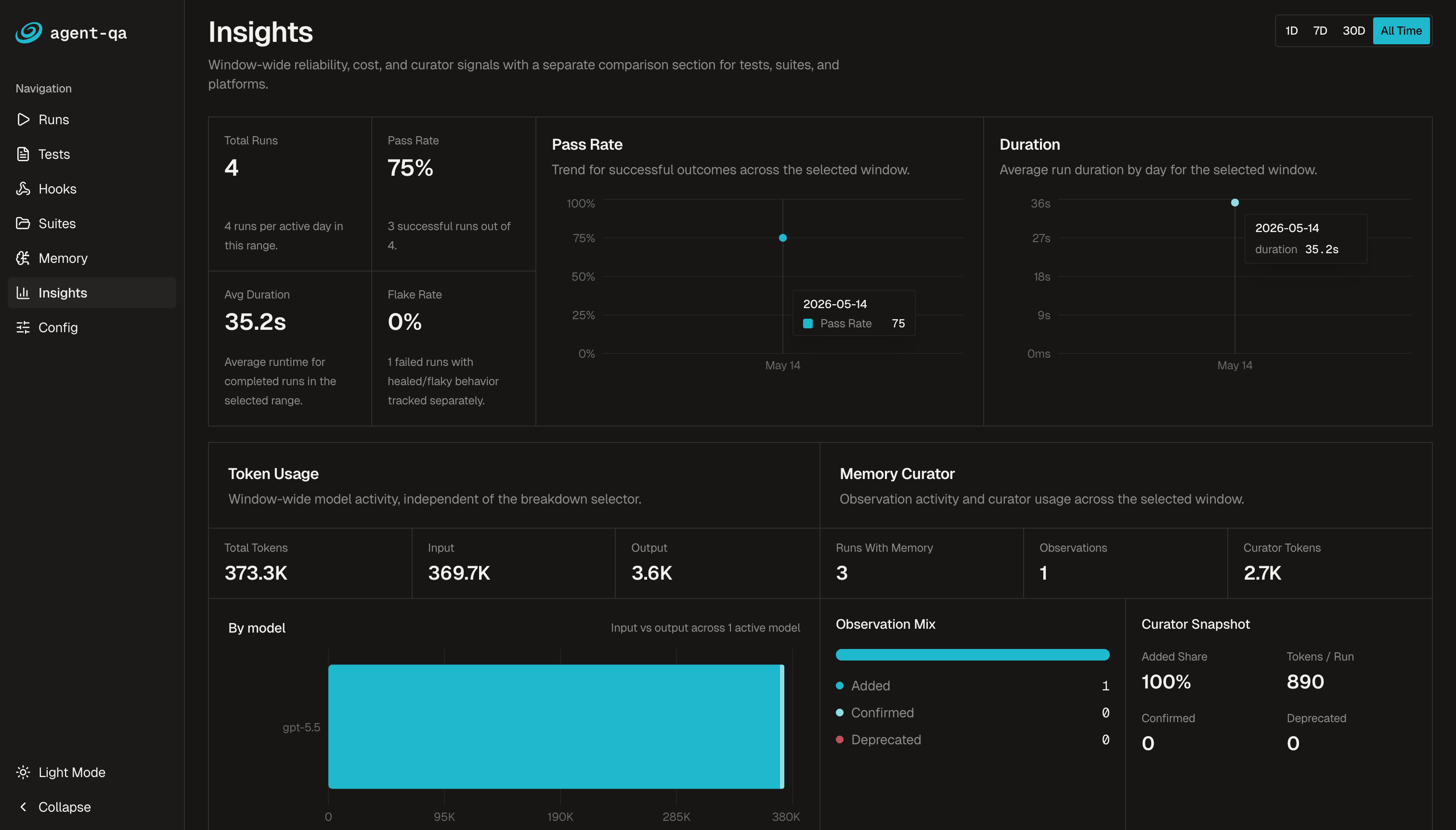
Insights opens at /insights. The dashboard also redirects older /analytics and /trends routes into Insights.
Use Insights to review chart-oriented views that summarize run and quality signals.
Config
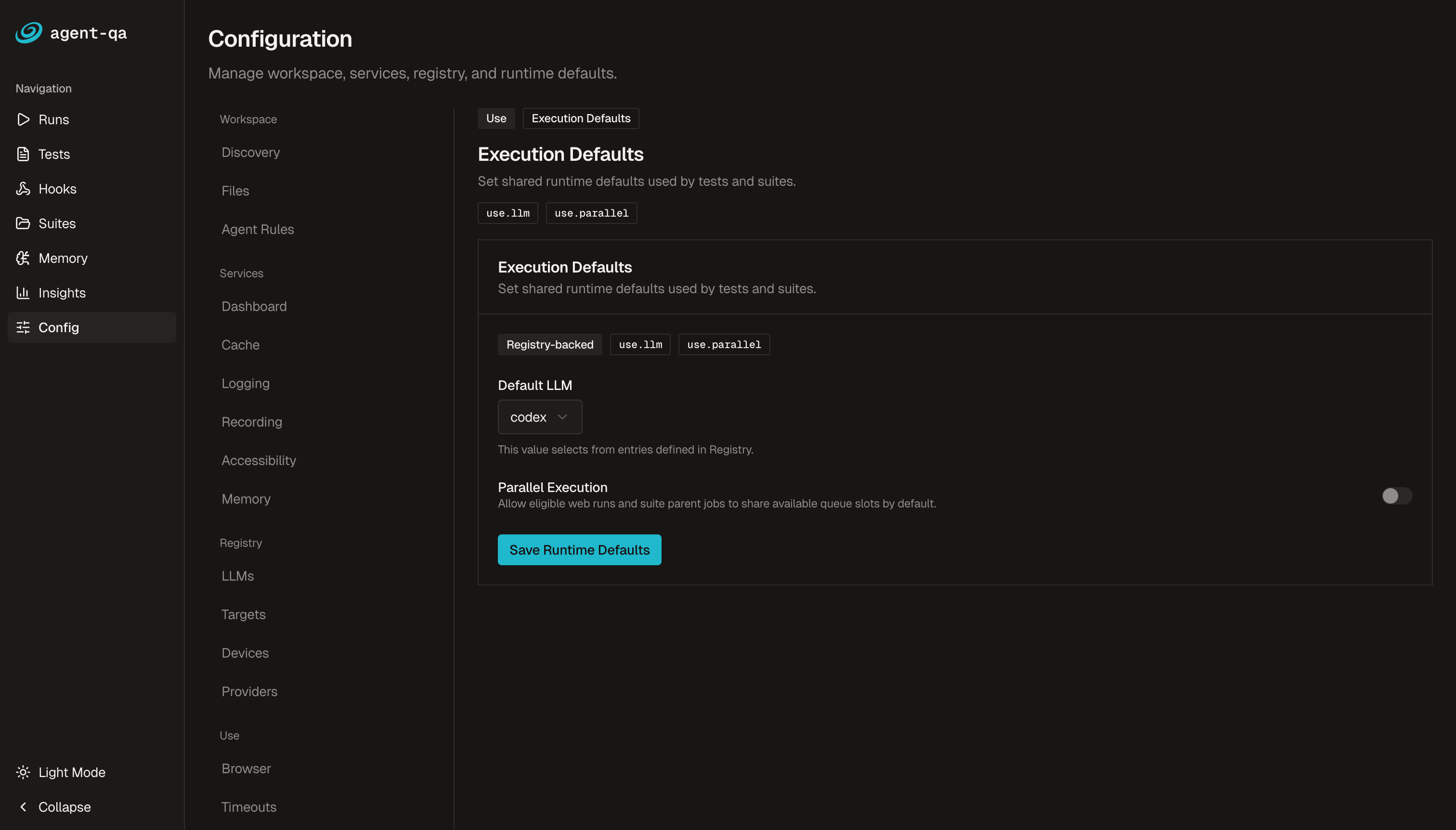
Config opens at /config. Item-focused config links use /config?bucket=...&item=.... The dashboard configuration section includes Dashboard settings for Port, Database Path, Artifacts Directory, and Save Changes.
Use Config to inspect and edit workspace-backed settings for dashboard services and other agent-qa configuration buckets.
Queue and run management
Queue management is source-backed through the CLI rather than a separate sidebar view. Use agent-qa queue list --server http://localhost:3470 to inspect pending, running, and optionally completed jobs, and agent-qa queue cancel <runId> --server http://localhost:3470 to cancel a pending or running job.
Use this with Runs and live run routes when you need to decide whether to watch, inspect, or cancel work that is already in progress.